

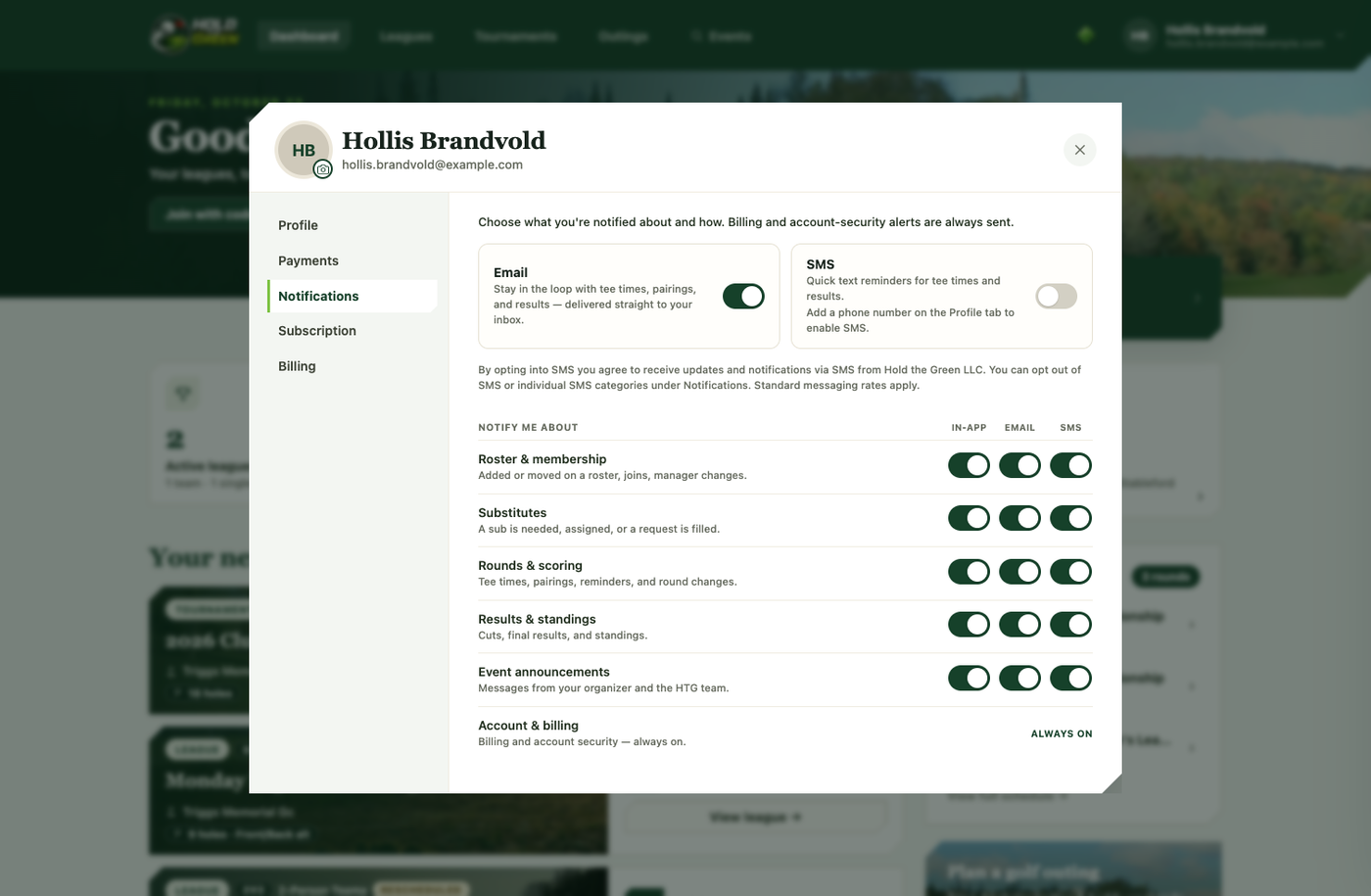
Open your account menu and go to the Notifications tab.
Step by step
Find the grid of categories: roster and membership, substitutes, rounds and scoring, results and standings, and event announcements.
For each category, choose in-app, email and/or text. Turning a box off really does stop that notification on that channel.
For texts, add and switch on a phone number on your account's Profile tab first. The text column only works once that's done.
Some messages always come through
Billing and account-security alerts are sent on every channel, since they matter too much to miss. Every notification email has a one-click unsubscribe if you want out of a channel.
Did this answer it?
Updated