

Questions, answered.
Short answers to what golfers and organizers ask most. Each one links to the full guide when you need the detail.
Getting started
New here? The basics of events, joining, and your golfer profile.
A league runs weekly over a season, a tournament runs over consecutive days, and an outing sets every round up on its own.
Why outings have no overall standings
Each round of an outing has its own leaderboard. The rounds aren't comparable, so adding a scramble and a stroke-play eighteen together would produce a number that looks meaningful and isn't. Outings are always invite-only, and they come out of their own yearly allowance rather than using up one of your league or tournament events.
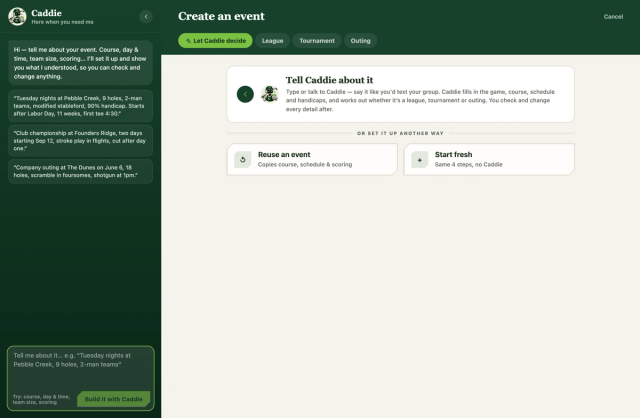
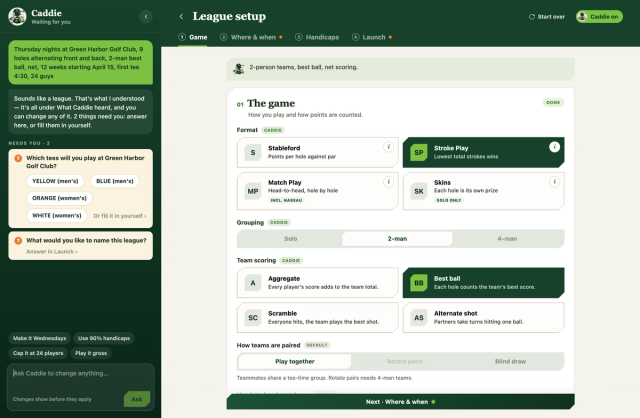
Click Create event, then tell Caddie about it, reuse a past event, or work through Game, Where and when, Handicaps, and Launch.
Game. The format and how it's played: teams, team scoring, pairing, gross or net.
Where and when. The course and tee, then the schedule (a league's day, start and weeks; a tournament's or outing's rounds).
Handicaps. Allowance, course handicaps, standings, a cut, eligibility.
Launch. The name, field size, public or private, dues, then Review and launch.
Nothing is created until you launch
Every line Caddie fills in can be clicked and changed. Reusing a past event copies its course, schedule and scoring with the dates moved forward.
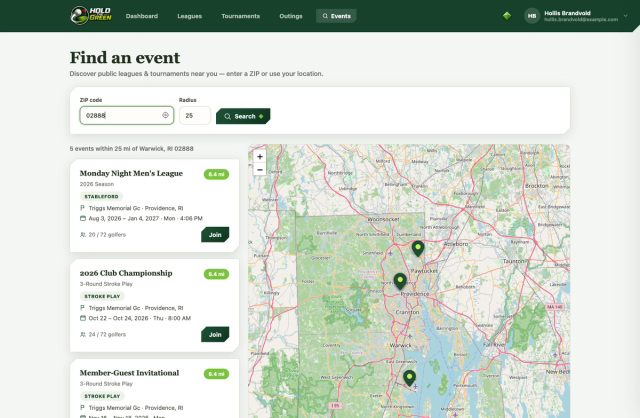
Search by ZIP code or your location from the Find an event screen, then request to join as a golfer or a sub.
Enter a US ZIP code and a radius in miles, then tap Search. Or tap Use my location to search around wherever you are.
Public events within that distance show up on a live map and in a list beside it.
Tap a result to see its format, course, dates, distance and how many spots are filled, then tap Join to request to join.
Choose Join as a golfer or Join as a sub (for a tournament, the sub option is the waitlist). The organizer gets your name, handicap and contact info with your request, and decides whether to add you.
Can't find your group?
Only events an organizer has made public show up here. Private, invite-only events are joined with a join code from the organizer instead.
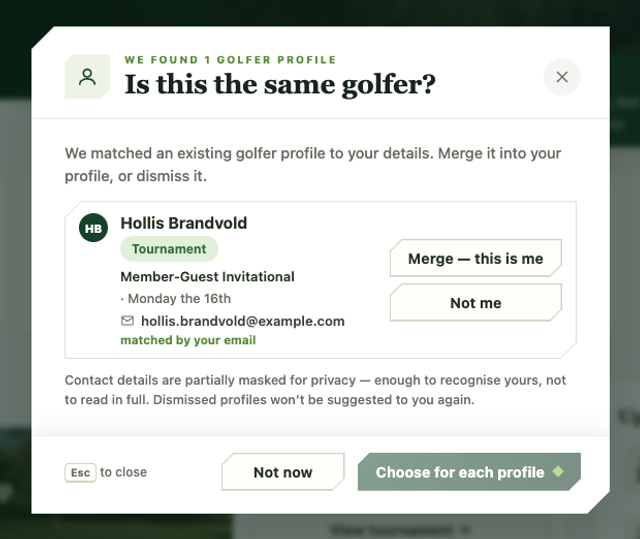
Review the matched profiles your dashboard finds, tick the ones that are you, and merge them into your account.
Click Merge into my profile on that prompt. The Is this the same golfer? dialog lists each matching profile, with the event it's on, when that event plays, and whether it matched your email or your phone.
On each profile that's really you, click Merge, this is me. On any that isn't, click Not me.
Not ready to decide? Not now closes the dialog, and the prompt comes back later.
What happens after you claim it
Profiles you mark Not me won't be suggested again. Once claimed, your GHIN and handicap become editable from the account dialog, and your standings and scores everywhere follow you from then on.
Running your event
Teams, scoring settings, handicaps, and the people who help you run it.
Accept or decline requests from the Pending requests card on your roster. It only appears when someone is waiting.
Open the event and look in the roster column for the Pending requests card. It only appears when requests are waiting.
Tap a name to see their details first, if you want to check before deciding.
Tap the checkmark to accept, or the X to decline.
Where they land
Accepting a golfer request adds them to the field. Accepting a sub request adds them to your substitutes, or to the waitlist for a tournament.
Add co-managers, or hand off ownership entirely, from the event's settings dialog.
Open your event's Settings dialog.
Go to the managers section.
Add a co-manager. They get the same day-to-day running permissions you have.
Stepping back entirely? Use the same dialog to transfer ownership to one of your co-managers instead.
Handing it on without ending it
Transferring ownership keeps the event, its roster and its standings exactly as they are. It's the way to step back from an event without it ending.
Build teams manually, randomly, balanced by handicap, or into flights from the event's Teams tab.
Choose how teams get built: manually, randomly, balanced by handicap, or into flights.
Review the generated teams, then rename and rearrange them however you like.
Save. Teams then drive grouping for team scoring and, once seeded, the playing groups on the schedule.
Roster changed?
You can regenerate or edit teams again later from the same tab.
Set net, gross, or both side by side from the Game step in the builder or from an event's settings.
Open the builder's Game step, or the event's Settings.
Find the Net / Gross setting and choose Net only, Gross only or Both.
When to run both
Both gives you two parallel competitions from the same rounds. It suits a group with a wide handicap spread that still wants a gross leaderboard for its low handicaps.
Turn on Course handicaps so each player's handicap adjusts for the tee and course they actually played.
Open the builder's Handicaps step, or the event's Settings.
Turn on Course handicaps.
Mixed tees? Turn it on
Any time your group plays from different tees in the same round, this is what keeps the scoring fair.
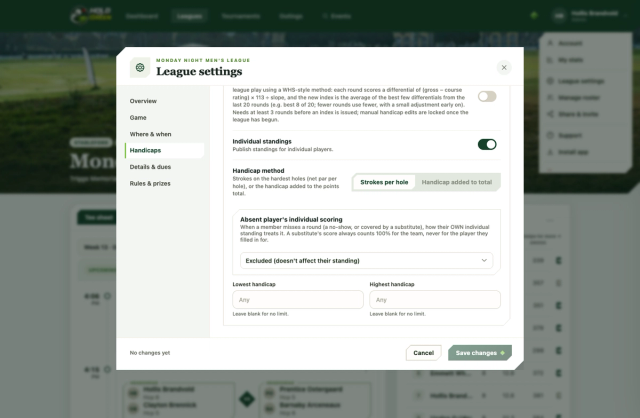
Set Drop lowest rounds to however many rounds should be left out, for individuals, teams, or both.
Open the builder's Handicaps step, or the event's Settings.
Find Drop lowest rounds and set how many of each competitor's worst rounds come off their season total (0 keeps every round).
Choose whether it applies to individuals, teams, or both.
Why leagues use it
It keeps one bad night in week four from quietly ending someone's season.
Pick Ryder Cup as your format, set up your two sides, and choose which match types make up each round.
In the Game step, choose Ryder Cup as the format.
Set up your two sides: your club against another, or any two sides you want to pit against each other.
Choose how each round is built from Fourball, Alternate Shot and Singles matches. Mix match types within one day (a 6/6/6 day is one tap away) or keep one match type per round across several days.
Once it's live, each side's captain manages their own team's pairings round by round from the event page.
No individual leaderboard
Standings are a two-side race for match points, the same as the real thing. Format and scoring options explained has the full breakdown, and our Ryder Cup night shows one played out.
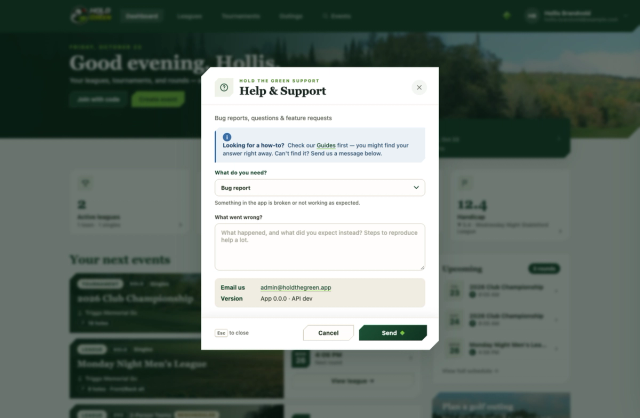
Request a missing course from the builder's Where and when step, or a custom format from Help and support.
Missing course. In the builder's Where and when step, search for your course, and try the wider deep search. Still not there? Tap Still can't find it? Request this course and submit. It opens a support request with the course name already filled in.
Custom format. If none of the built-in formats covers a rule your group plays by, open Help and support, choose Custom format, and describe what you need.
Who reads it
Both requests go straight to the Hold the Green team.
Scores and rounds
Tee sheets, printed cards, and what to do when a score looks wrong.
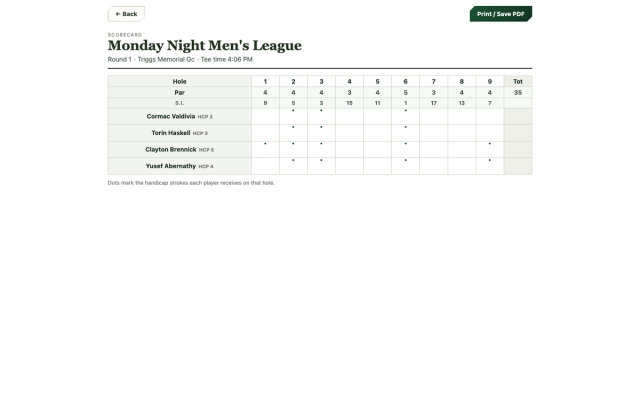
Open the round's tee sheet and tap Print / Save PDF for a printable sheet with handicap-stroke dots marked.
Open the round's tee sheet.
Tap Print / Save PDF.
Two things you can print
The tee sheet itself, to post at the course. Or blank scorecards with the handicap-stroke dots already marked for each player on every hole, ready to hand out before you tee off.
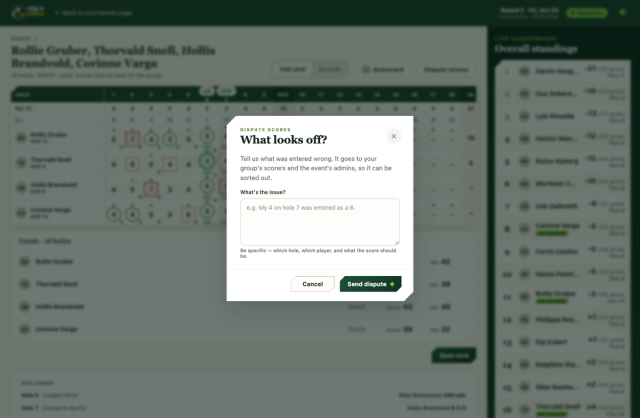
Flag it right from your scorecard. Describe the issue and it lands on the organizer's desk to sort out.
Open your scorecard for the round and tap Dispute scores.
In the dialog, describe the issue. Be specific: which hole, which player, and what the score should be.
Tap Send dispute.
What happens next
The group's scorers and the event's admins are notified. For a score that really is wrong, a manager or admin can reopen the round to fix it.
Dues and payments
Collecting dues, paying them, and seeing who is square.
Save your payment apps on your account, turn on Requires dues, then set the amount and which apps the event accepts.
Open Account, then Payments, and save the apps you can be paid through: PayPal, Venmo, Cash App, Apple Pay or Google Pay. You can't offer an app you haven't given a handle for.
Turn on Requires dues, in the builder's Launch step when you create the event or later from Settings.
On the event page, press Set up dues and fill in the amount, what it covers, and which of your apps this event accepts. You can add your own payment link for anything the five apps don't cover.
Players then get a Pay dues button that opens the right app with you and the amount already filled in.
We never touch the money
It goes straight from your player to you inside your own payment app. Hold the Green never handles it and takes no cut.
Press Pay dues on the event page and pick how you want to pay. The organizer confirms it once the money reaches them.
Pick PayPal, Venmo or Cash App and it opens that app with the organizer and the amount filled in. Confirm it there as you normally would.
Paying with Apple Pay or Google Pay? Neither publishes a link that opens a payment ready to send, so you'll see the organizer's handle and what to do with it. Send it yourself, then press I've sent it.
Paid but still waiting?
It just means the organizer hasn't checked yet. Give them a nudge if it's been a while.
The dues dialog splits your roster into Paid, Awaiting confirmation and Unpaid, and every roster entry carries a marker.
Chasing the stragglers
The Send a reminder button emails everyone not yet confirmed paid. You can send one reminder per event per week.
Notifications
Push, text, and email, and how to choose what reaches you.
Tap Enable on the Never miss a tee time prompt, or turn them on anytime from the Notifications tab.
Look for the Never miss a tee time prompt, or open the Notifications tab in your account menu.
Tap Enable, and allow notifications when your browser or device asks.
Turn push on or off anytime from the same tab.
On an iPhone or iPad
Apple requires the app to be installed to your home screen first: see Installing the app. On Android, and in Chrome or Edge on a computer, it works straight in the browser.
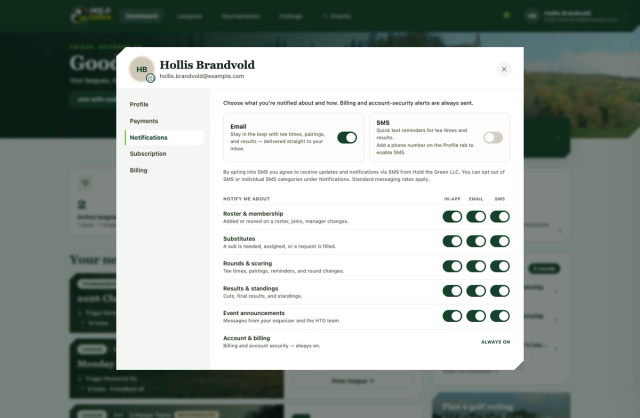
Choose in-app, email or text for each category from the Notifications tab in your account menu.
Find the grid of categories: roster and membership, substitutes, rounds and scoring, results and standings, and event announcements.
For each category, choose in-app, email and/or text. Turning a box off really does stop that notification on that channel.
For texts, add and switch on a phone number on your account's Profile tab first. The text column only works once that's done.
Some messages always come through
Billing and account-security alerts are sent on every channel, since they matter too much to miss. Every notification email has a one-click unsubscribe if you want out of a channel.
Account and billing
Your plan, your card, your data, and your account.
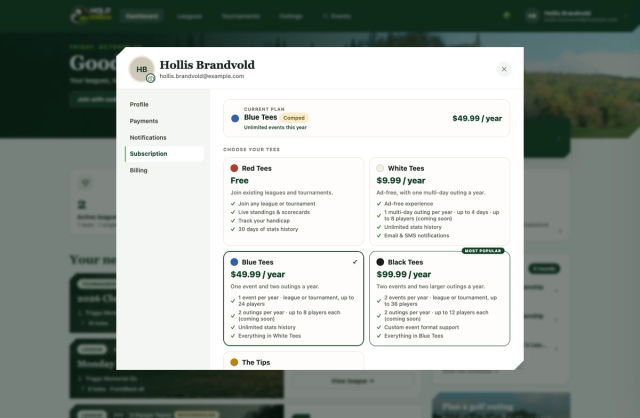
Open the account dialog's Subscription tab, tap the tier you want, and complete the secure payment form.
Tap the tier you want. A Subscribe button appears.
Have a discount code? Enter it in the Discount code field before subscribing, and it's applied at checkout.
Tap Subscribe. On a paid or partly discounted tier this opens a secure Stripe payment form. A fully free code activates your plan right away, with no payment step.
Not showing yet?
Your new tier appears in the dialog within a few seconds. Reload the page if it's slow. Subscription tiers lists what each tier includes.
Change the card on file from the account dialog's Billing tab, or manage it in the Stripe customer portal.
Find Update your payment method and change the card being charged, right in the app.
If a renewal failed you'll see a past-due banner. Updating your card here retries the open invoice automatically, so you don't lose access while you sort it out.
For more detailed billing, tap Manage billing on Stripe to open the secure Stripe customer portal, then come back to the app when you're done.
Your card stays with Stripe
Payments are handled entirely by Stripe. The app never sees your full card details.
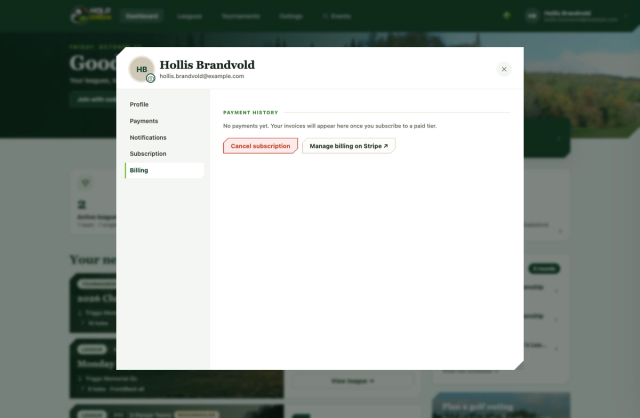
Use the Cancel subscription button on the Billing tab and type the confirmation phrase to finish.
Tap Cancel subscription. A panel opens explaining exactly what happens: renewals stop, you keep access until the end of the period you've paid for, and then you drop back to Red Tees.
Type "cancel my subscription" to confirm.
Didn't use it this period?
If you're on a paid tier and haven't run an event this billing period, the team reviews your cancellation for a possible refund and gets back to you within about 72 hours.
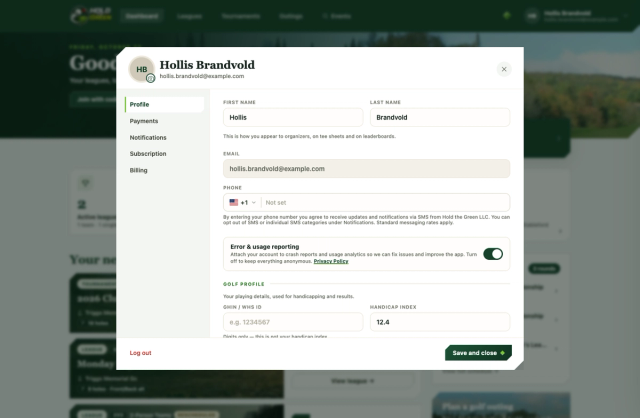
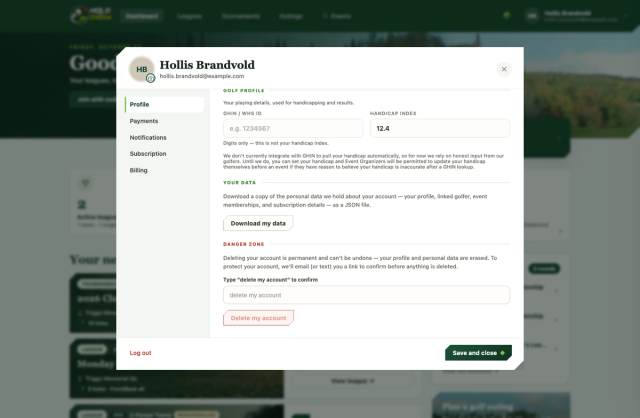
Open the account dialog's Profile tab and tap Download my data. Nothing gets deleted.
Scroll down to the Download my data button, just above the Danger zone.
Tap it to get a copy of your data.
It's only a copy
Downloading doesn't delete or change anything on your account. It's purely for your own records.
Confirm twice, once in the app and once by email or text link, to permanently delete your account.
Open the account dialog, go to the Profile tab, and scroll to the Danger zone at the bottom.
Type "delete my account" into the confirmation field to unlock the Delete my account button, then tap it. Nothing is deleted yet at this point.
A confirmation link is sent to your email (or by text if there's no email on your account). Open it. It lands on a page with a final Permanently delete my account button.
Tap it to confirm. Your account is erased and you're signed out, with a confirmation email once it's done.
Changed your mind?
Just don't open the confirmation link. It expires on its own and nothing is touched. Any leagues or tournaments you run keep going for their members, handed off to a co-manager or a caretaker account, and your past scores are anonymized rather than deleted so other players' standings stay accurate.

Still stuck?
The guides walk through every screen step by step. Or send us a note from the app and a real person writes back.