
Setting Up an Event with Caddie
Caddie is the AI helper built into the event builder. Describe your league, tournament or outing the way you’d text your group, and Caddie fills in the setup for you to check. It drafts; you decide. Nothing is created until you press Launch.
1. Describe your event
Click Create event on your dashboard. On a computer Caddie sits in a panel beside the builder; on a phone you type on the first screen, and after that Caddie is a bar along the bottom you tap to chat.
Type into the box, or tap the mic and say it, then click Build it with Caddie. Leave the kind on Let Caddie decide and it works out whether you mean a league, a tournament or an outing, or pick one first.
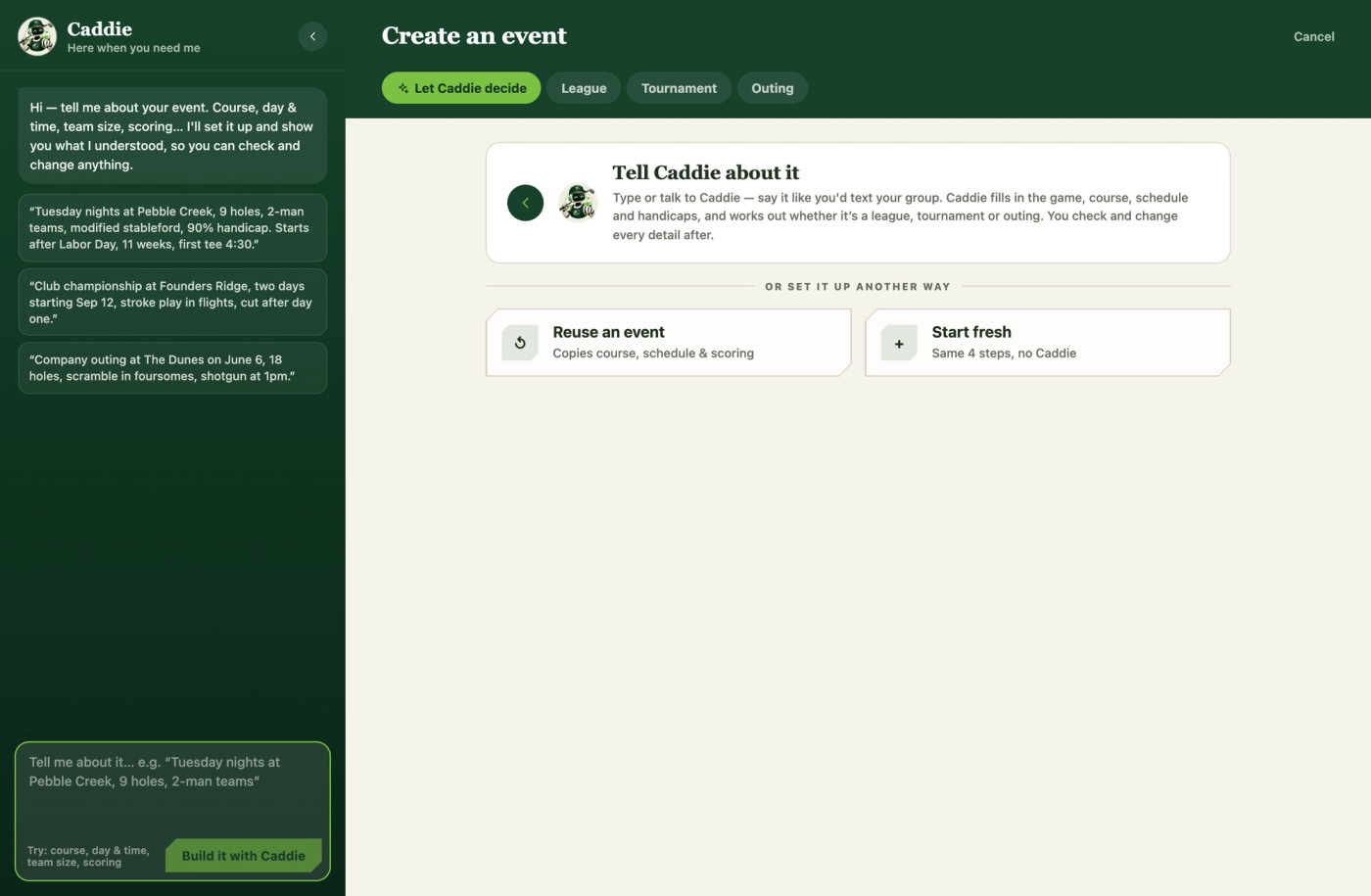
The more you say, the more Caddie can fill in. Things it understands:
- When: “Thursday nights”, “Saturdays”, “April 15”, “12 weeks”, “two days, May 15 and 16”.
- Where: the course by name (“at Green Harbor”), 9 or 18 holes, front, back or alternating nines, and the tees.
- The game: Stroke Play, Stableford, Match Play, Skins, a scramble or best ball, 2-man or 4-man teams, gross or net.
- The details: a handicap allowance (“90% handicaps”), a cut (“top 16 make the cut”), the field size (“24 guys”) and the first tee time.
Try: “Thursday nights at Green Harbor, 9 holes alternating front and back, 2-man best ball, net, 12 weeks starting April 15, first tee 4:30, 24 guys.”
2. Check what Caddie heard
Caddie shows what it understood, step by step: the kind of event and why it picked it, then every setting under Game, Where & when, Handicaps and Launch. This is a draft, not a decision.
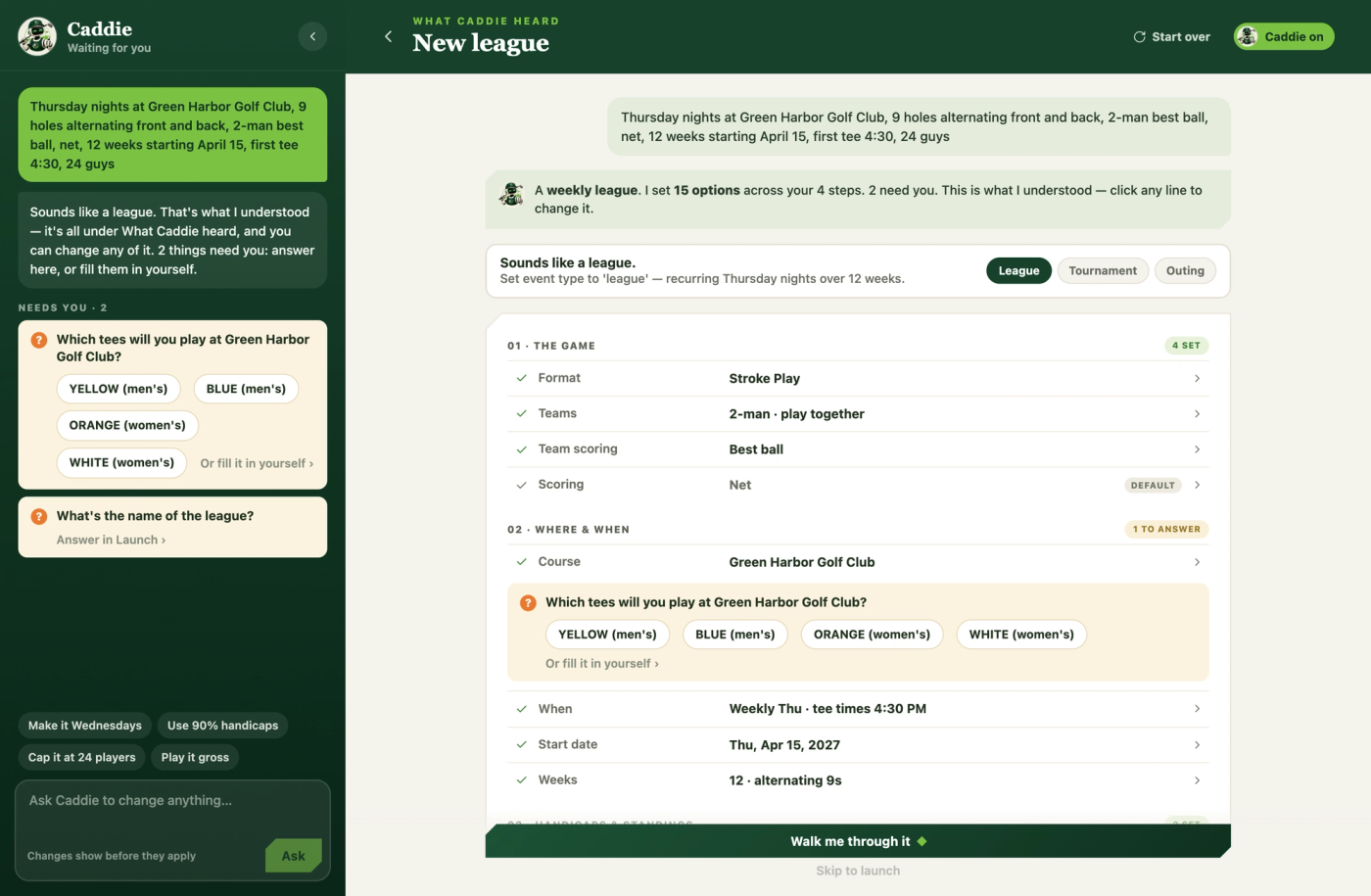
- Change anything. Click any line to change it. It opens that setting in its step, highlighted.
- Answer its questions. If Caddie couldn’t settle something (which tees, which of two courses with the same name), it asks under that line. Tap an answer, or choose Fill it in yourself.
- Wrong kind? If the kind is wrong, tap League, Tournament or Outing on the “Sounds like a…” line and Caddie re-reads your words as that kind.
Then click Walk me through it to go step by step, or Skip to launch once nothing needs you.
3. Ask Caddie for changes
Keep talking to Caddie from its panel while you work through the steps: “make it 10 weeks”, “use 90% handicaps”, “play it gross”, or tap one of the suggestions. Caddie shows the change first, and nothing happens until you click Apply change.
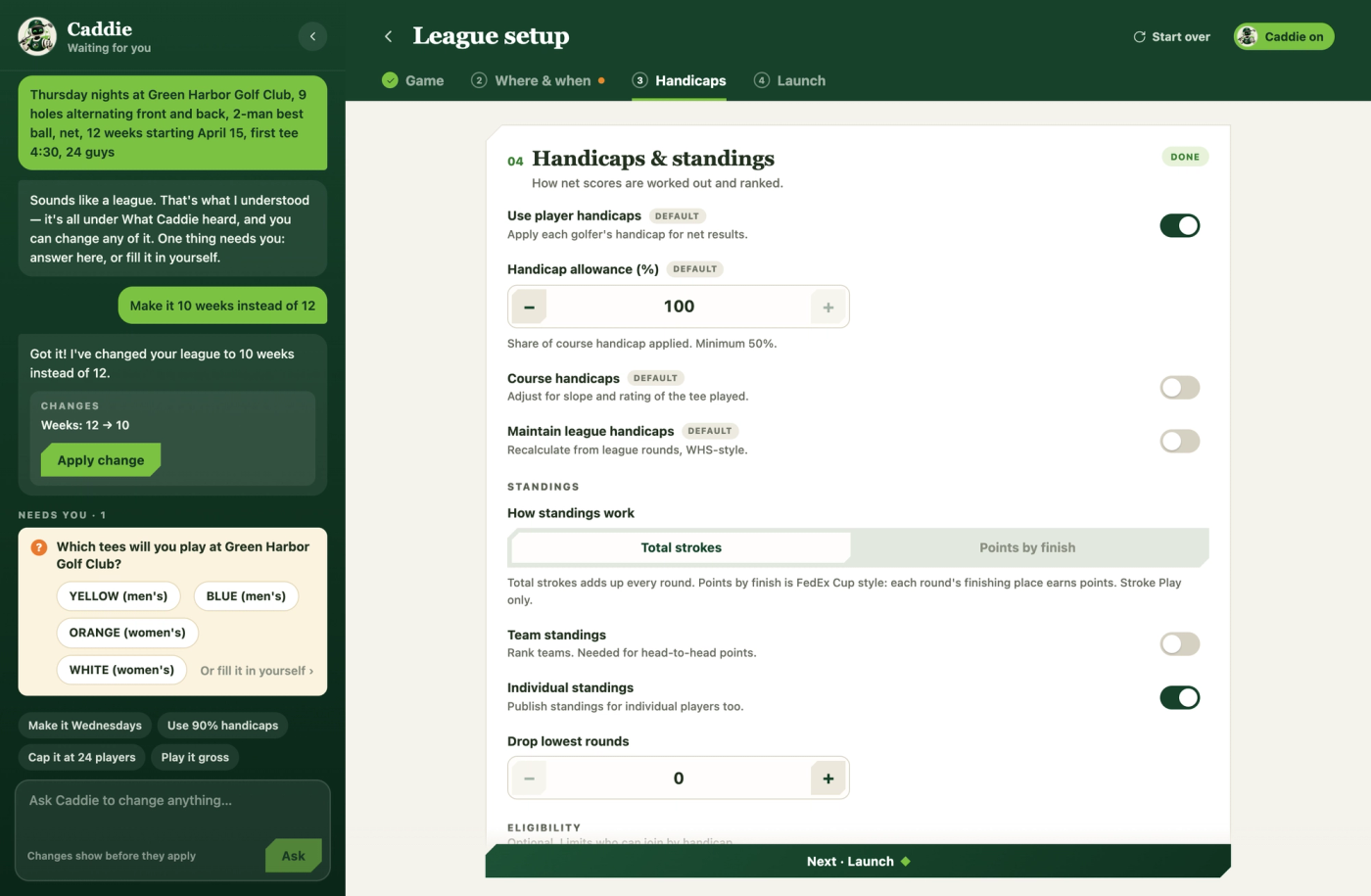
Every setting is tagged with who set it: CADDIE, YOU, DEFAULT, or COPIED when it came from a past event. So you can always see what Caddie chose and what you chose.
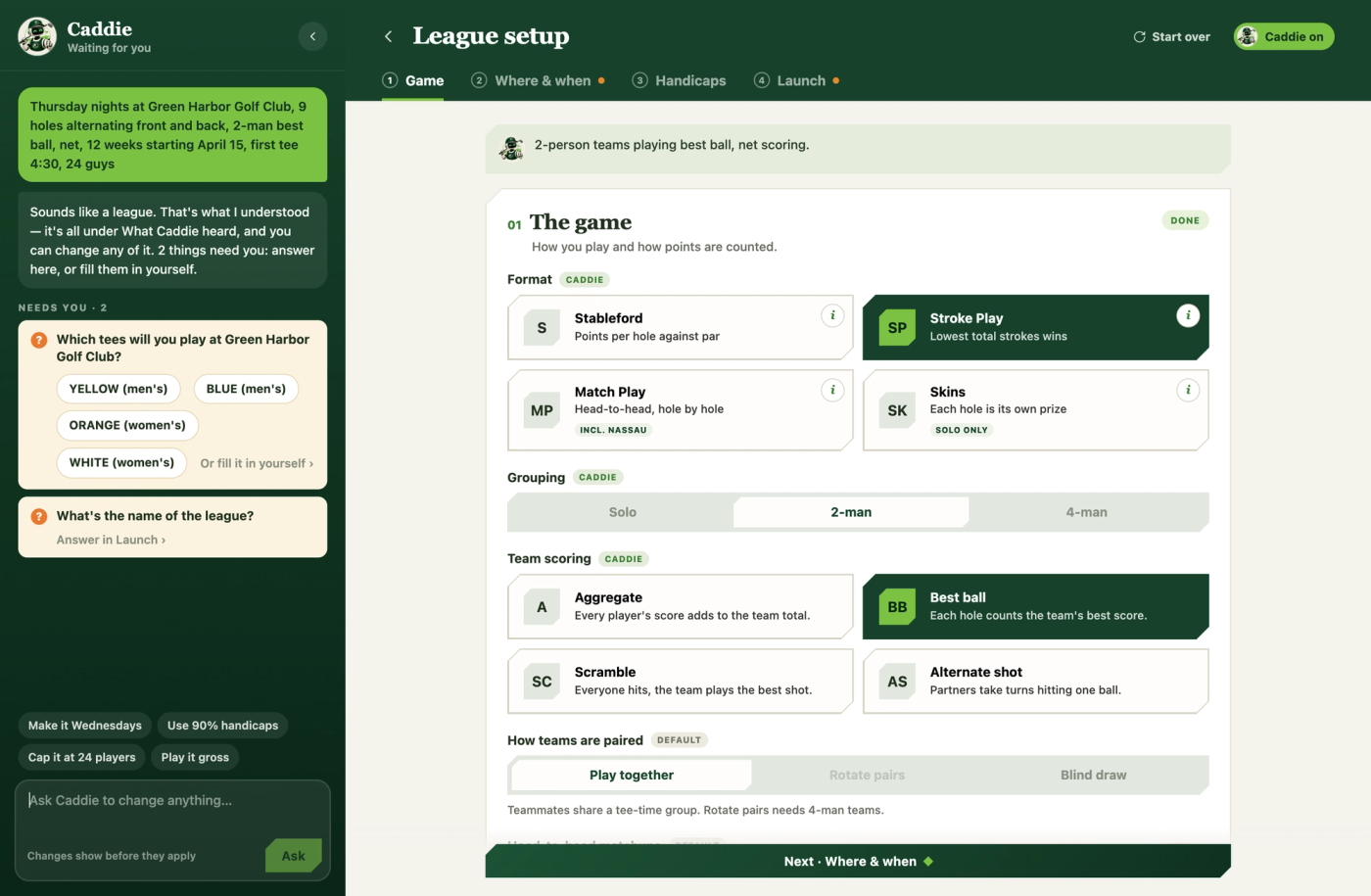
4. Launch
The last step, Launch, needs an event name and asks about the field size, public or private, dues and side games. Launch stays off until nothing’s missing, and Show what’s missing takes you straight there. Above the review, What Caddie did lists everything it set, assumed, or left for you.
What Caddie leaves to you
Some things are yours to set, so Caddie never fills them in, even if you mention them:
- payment apps, dues amounts and what dues cover
- rules sheets, prizes and side games
- the cover photo and description
- which players to bring over from a past event
Caddie only picks from courses already in Hold the Green. If it can’t find yours, the Where & when step lets you search the full course database or request the course.
Rather not use Caddie?
Caddie is never forced on you. Start fresh works through the same four steps by hand, and Reuse an event copies a past event’s course, schedule and scoring with the dates moved forward. You can turn Caddie off in the builder’s header at any time.
Questions
Does Caddie create the event on its own?
No. Caddie only fills in a draft. Nothing is created, and nobody is invited, until you press Launch.
What if Caddie gets something wrong?
Click the line and change it, or tell Caddie (“no, Wednesdays”). Every change it suggests waits for you to apply it. If something still looks off, use Help & support to tell us. It helps us make Caddie better.
Can I use Caddie on my free trial?
Yes. Caddie works the same on the free trial; the trial’s limits (one event, one round, up to 24 players) still apply to what it sets up.